Photo: Tony Webster / Wikimedia Commons, CC BY 2.0
Most small-business breaches don’t start with someone breaking in. They start with someone logging in, using a password that was guessed, reused from another site or typed into a convincing fake login page. If you fix how your team signs in, you close the door attackers use most often.
The trouble is that traditional password rules make things worse. Forced changes every 90 days, mandatory symbols and sticky notes on monitors have trained a generation of employees to pick passwords like Summer2026! and reuse them everywhere. Modern guidance has moved on, and so has the technology: password managers are easy, multi-factor authentication (MFA) is built into nearly every service, and passkeys are starting to replace passwords altogether.
This guide lays out a login strategy that is both secure and realistic for a small team: what current standards actually recommend, which MFA methods to choose, how passkeys fit in, and a rollout plan that won’t have your staff in revolt.
Key takeaways
- Length beats complexity. Current NIST guidance favors long passphrases, screening against known-breached passwords, and no forced periodic changes.
- A business password manager is the foundation: it makes unique passwords effortless and helps block fake login pages.
- Not all MFA is equal. Passkeys and security keys resist phishing; authenticator apps are good; text-message codes are better than nothing.
- Protect email and admin accounts with your strongest method first, then expand.
- Plan for lost phones and account recovery before you need it, because recovery is a favorite attacker shortcut.
What current password guidance actually says
The U.S. National Institute of Standards and Technology publishes the most widely referenced rules for passwords in its Digital Identity Guidelines, NIST SP 800-63B. The current revision, finalized in 2025, will surprise anyone used to old-school IT policies. In plain English, it says organizations should:
- Favor length: require at least 15 characters when a password is the only thing protecting an account, and at least 8 when it is used together with MFA, while allowing passwords of at least 64 characters.
- Drop composition rules: stop requiring a mix of uppercase, numbers and symbols. These rules lead to predictable patterns rather than stronger passwords.
- Stop forced periodic changes: only require a change when there is evidence a password has been compromised.
- Screen against a blocklist: reject passwords that appear in known breach data, common choices like “password123,” and context-specific words like your company name.
- Support password managers: allow pasting and autofill, and allow people to show the password while typing.
- Drop password hints and security questions such as “What was your first pet’s name?” The answers are often guessable or public.
For a small business, that translates into a simple rule your team can remember: use a long passphrase or a password-manager-generated password, never reuse it, and only change it if it might be compromised.
How to build a passphrase people can remember
Most logins should be random passwords generated and stored by a password manager, so nobody ever needs to remember them. But a few things must be memorized: the password manager’s master passphrase, a computer sign-in, and perhaps a phone passcode. For those, string together four to six random, unrelated words, for example the kind of phrase you might get by opening a dictionary at random several times. Avoid song lyrics, famous quotes, pet names, birthdays and your company name, because attackers’ guessing tools try those first. A good test: if the phrase would appear in a search engine result or on your social media profile, pick another one.
Password managers: the foundation
Nobody can memorize 80 unique, long passwords. A password manager generates and stores them, fills them in automatically, and syncs across devices. Your team only needs to remember one strong master passphrase.
What to look for in a business plan
- Shared vaults or collections so teams can share logins (the company social media account, a supplier portal) without sending passwords in email or chat.
- Admin controls to enforce MFA on the vault itself, see who has access to what, and remove access instantly when someone leaves.
- Account recovery options so a forgotten master password doesn’t lock someone out permanently.
- Breach monitoring that flags reused, weak or exposed passwords.
- Passkey support, since you’ll want to store those too.
Avoid relying on passwords saved in a web browser’s personal profile for business accounts. They are tied to an individual’s personal account, hard to audit and impossible to take back when someone leaves.
A hidden anti-phishing benefit
A password manager only autofills on the exact website where the password was saved. If you land on rnicrosoft-login.com and your manager doesn’t offer to fill your credentials, that’s a red flag. Teach your team: if autofill doesn’t work, stop and check the address before typing anything. Our guide on how to spot phishing emails covers more of these warning signs.
MFA methods compared
Multi-factor authentication requires a second proof of identity beyond your password: something you have (a phone or key) or something you are (a fingerprint or face). Even if a password is stolen, the attacker still can’t sign in. But attackers have adapted, using fake login pages that relay MFA codes in real time and “MFA fatigue” attacks that spam approval prompts. That’s why the method matters.
| Method | Phishing resistance | Ease of use | Best for |
|---|---|---|---|
| Passkeys | Strong | Very easy (fingerprint, face or device PIN) | Everyone, wherever supported |
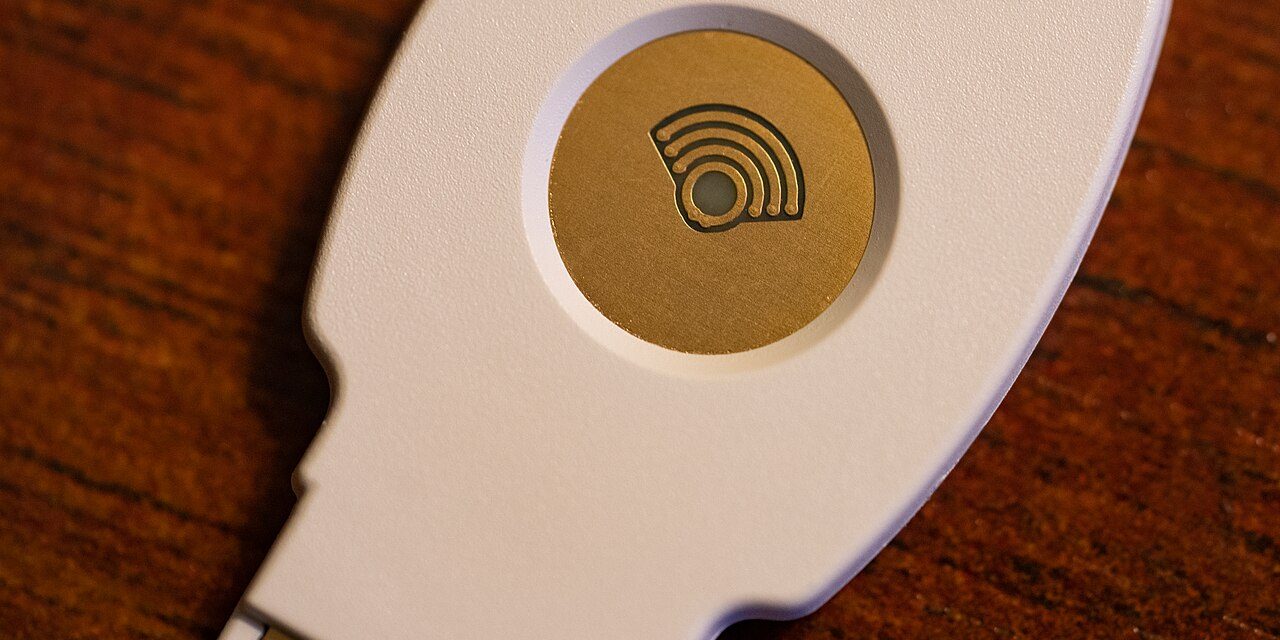
| Hardware security keys (FIDO2) | Strong | Easy once set up; must carry the key | Admins, finance, owners, staff without smartphones |
| Authenticator app with number matching | Moderate | Easy | General staff baseline |
| Authenticator app one-time codes | Moderate to low | Easy | Services without push or passkey support |
| Simple push “Approve” prompts | Low (vulnerable to MFA fatigue) | Very easy | Upgrade to number matching where possible |
| Text message (SMS) or email codes | Low | Easy | Fallback only, when nothing better is offered |
CISA’s MFA guidance encourages organizations to move toward phishing-resistant MFA, especially for high-value accounts. Even so, any MFA is far better than none. If a service only offers text-message codes, turn them on.
Passkeys explained without the jargon
A passkey replaces your password with a pair of cryptographic keys. One stays securely on your device or in your password manager; the other is stored by the website. When you sign in, your device proves it holds the right key, usually after you unlock it with your fingerprint, face or PIN. There’s nothing to type, nothing to remember and nothing a fake website can steal, because the passkey only works on the real site it was created for.
Synced passkeys vs. device-bound keys
- Synced passkeys are stored in a password manager or your Apple, Google or Microsoft account and sync across your devices. They are convenient and recover easily if you lose a phone.
- Device-bound passkeys live on a single hardware security key or device and never leave it. They offer the highest assurance and suit admin accounts.
Major platforms including Microsoft, Google and Apple now support passkeys, as do many business apps. A practical approach: turn on passkeys wherever they’re offered, store them in your business password manager so they’re manageable, and keep MFA on everything else.
A rollout plan your team will follow
Changes to how people log in feel personal. Announce the “why,” make it easy, and roll out in stages.
- Week 1: Protect the crown jewels. Turn on your strongest MFA for admin accounts, the owner’s email, banking and payroll. Buy two hardware keys per admin (one primary, one backup stored safely).
- Week 2: Deploy the password manager. Run a 30-minute hands-on session. Have everyone install it, set a master passphrase, turn on MFA for the vault, and save their ten most-used logins.
- Week 3: Turn on MFA for email for everyone. In Microsoft 365 or Google Workspace, enforce it for all users with a short grace period. Use authenticator apps with number matching as the baseline. Our guide to hardening Microsoft 365 and Google Workspace shows where these settings live.
- Week 4: Expand to every business app. Accounting, CRM, cloud storage, domain registrar, website admin, social media. Prioritize anything with customer data or money.
- Ongoing: Upgrade to passkeys. Each quarter, check which services now support passkeys and switch over.
Handling the awkward edge cases
Most rollouts stall on the exceptions. Decide these in advance:
- Shared accounts: Where a vendor only allows one login, store it in a shared vault and attach MFA to a shared authenticator inside the password manager or a key kept by a designated owner. Better yet, ask the vendor for individual user accounts.
- Staff without company phones: Some employees won’t want work apps on a personal phone. Hardware security keys solve this neatly and cost less than a phone stipend.
- Lost or replaced phones: Write down the recovery process: who verifies the person’s identity (in person or by video), who resets their MFA, and how quickly.
- Recovery codes: Store backup codes for critical accounts in the password manager or a locked safe, not in a desktop text file.
- Travelers: Make sure authenticator apps work offline and keys travel with the person, so nobody gets locked out abroad.
Watch out
Attackers who can’t get past MFA often go around it by calling your help desk or IT provider, posing as a stressed employee who “got a new phone” and needs MFA reset. Require identity verification for every reset, such as a video call with the person’s camera on or a call-back to the number in your HR records, and tell your IT provider in writing that this is your policy. Also teach staff that an MFA prompt they didn’t trigger means their password is already known: deny it, report it and change the password.
A simple login policy you can adopt
Put your strategy in writing so it survives staff turnover. A one-page policy can be as simple as:
- All business accounts use a unique password generated by or stored in the company password manager.
- Passwords are at least 15 characters, or a long passphrase; no forced periodic changes unless compromise is suspected.
- MFA is required on every business account that supports it; passkeys or security keys are preferred.
- Admin, finance and owner accounts use phishing-resistant MFA.
- Never approve an MFA prompt you did not start; report it immediately.
- Logins are never shared by email, chat or text; use shared vaults instead.
- MFA resets require identity verification by video or call-back to a known number.
- Access is removed the same day someone leaves.
If you’d like ready-made, editable templates for this and other core policies, our Security Policy Toolkit includes a password and authentication policy written in plain English.
How SecuritySage can help
We help small businesses move from “passwords on sticky notes” to modern, phishing-resistant sign-in without disrupting the work day. That can mean choosing and deploying a password manager, enforcing MFA across Microsoft 365 or Google Workspace, setting up hardware keys for admins, or writing the policy and recovery process that holds it all together.
Our founder, Dave, has seen from the attacker’s side how often a single reused password is all it takes, and our approach is built around making the secure option the easy option for your team. Get started with SecuritySage and we’ll build a login strategy that fits the way your business actually works.
Frequently asked questions
Should small businesses still force password changes every 90 days?
No. Current NIST guidance in SP 800-63B says organizations should not require periodic password changes and should only force a change when there is evidence of compromise. Forced rotation tends to produce predictable, weaker passwords. Focus instead on long, unique passwords stored in a password manager, screening against breached passwords, and MFA.
What is the difference between a passkey and a password?
A password is a secret you type, which can be guessed, reused or stolen by a fake website. A passkey uses a pair of cryptographic keys: one stays on your device or in your password manager and is unlocked with your fingerprint, face or PIN. Because a passkey only works on the genuine site it was created for, it cannot be phished the way a password can.
Is text message (SMS) MFA good enough for a small business?
SMS codes are much better than no MFA, but they can be phished in real time or intercepted through SIM-swap fraud. Use an authenticator app with number matching as your baseline, and passkeys or hardware security keys for admin, finance and owner accounts. Keep SMS only as a fallback for services that offer nothing stronger.
What happens if an employee loses the phone they use for MFA?
Plan for this in advance. Store recovery codes in the company password manager, register a second method such as a backup security key where possible, and define who can reset MFA. Always verify the person's identity before a reset, for example by video call or a call-back to a known number, because attackers impersonate employees to trigger resets.



.jpg)