Photo: Solijon Solayev / Wikimedia Commons, CC BY-SA 4.0
In many small offices, the network was set up once, by whoever was around on moving day, and hasn’t been touched since. The internet provider’s router still has its original admin password, the Wi-Fi password is taped to the wall, and the accounting PC, the security cameras, the smart TV in the conference room and every visitor’s phone all share the same network.
That setup works, right up until it doesn’t. A single compromised device on a flat network can reach everything else on it. An outdated router can be taken over remotely. A former employee may still know the Wi-Fi password years later. None of this requires an expensive fix. It requires an afternoon, a clear plan and, in some cases, a modest equipment upgrade.
This guide walks you through securing your office Wi-Fi and network step by step, in plain English, with the specific settings to look for. You can follow it yourself or hand it to your IT provider as a checklist.
Key takeaways
- Start with an inventory: you can’t secure devices you don’t know are on your network.
- Change default router credentials, update firmware, and turn off remote administration, WPS and UPnP unless you have a specific need.
- Use WPA3, or WPA2 with AES if older devices require it, with a long passphrase that changes when staff leave.
- Separate staff, guest, smart devices and payment systems into different networks so one problem can’t spread to everything.
- Never expose Remote Desktop to the internet; use a VPN or remote access service with MFA.
Step 1: Map what’s on your network
Before changing settings, write down what you have. A simple spreadsheet is enough:
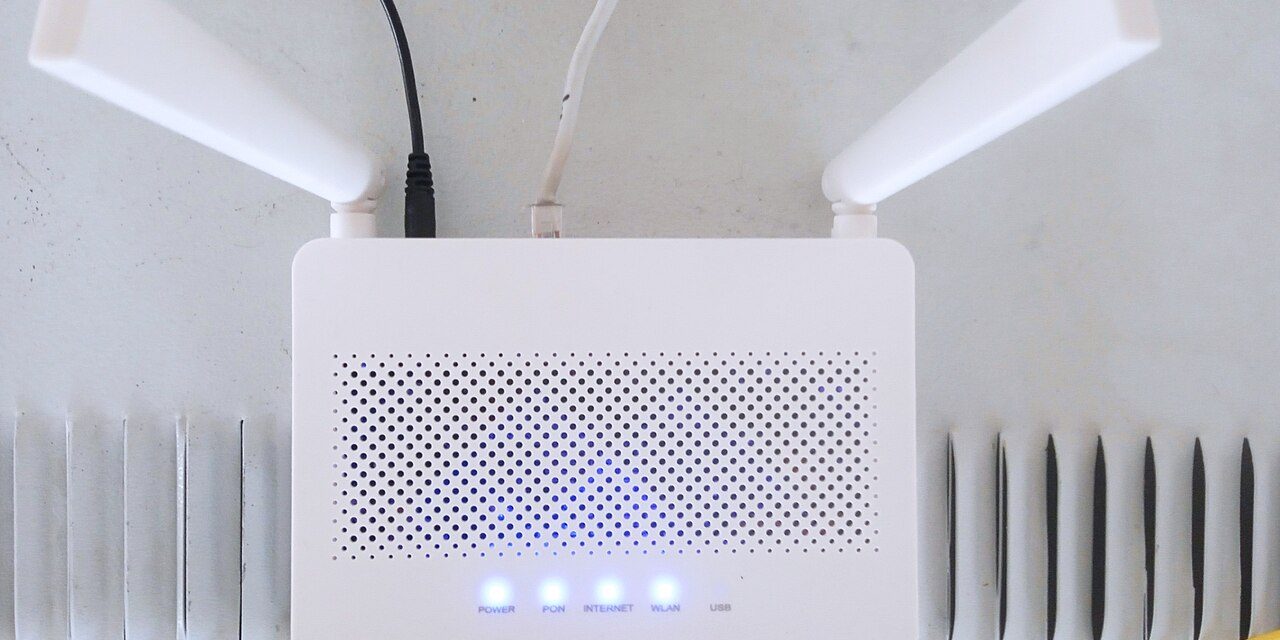
- Network equipment: the modem or gateway from your internet provider, any separate router or firewall, Wi-Fi access points and network switches. Note the make, model and where each one physically sits.
- Business devices: computers, laptops, printers, servers or network storage (NAS) devices, and phones that connect to Wi-Fi.
- Everything else: security cameras, door access systems, smart thermostats, TVs, voice assistants, card terminals and point-of-sale systems.
Your router’s admin page usually has a list of connected devices. Compare it to your inventory. Any device you can’t identify deserves investigation, and anything nobody uses should be disconnected.
Also check each piece of network equipment against the manufacturer’s support page. If the model is listed as end-of-life or no longer receives firmware updates, plan to replace it. No setting can fix equipment that will never be patched again.
Step 2: Lock down your router and firewall
The router is the gatekeeper between your office and the internet. Log into its admin page (often by typing an address like 192.168.1.1 into a browser, or through the manufacturer’s app) and work through these settings:
- Change the default admin username and password to a long, unique one stored in your password manager
- Update the firmware, and turn on automatic updates if the device supports them
- Turn off remote administration (sometimes called “remote management” or “WAN access”) unless your IT provider needs it, and if they do, restrict it to their addresses and require MFA
- Disable WPS (Wi-Fi Protected Setup), the push-button or PIN pairing feature, which has a history of security weaknesses
- Disable UPnP (Universal Plug and Play), which lets devices open holes in your firewall without asking
- Confirm the built-in firewall is on and that no unnecessary port forwarding rules exist
- Turn on logging, and if possible send logs to a place where they’re kept for at least 90 days
Internet provider equipment vs. business-grade gear
The combination modem-router your internet provider supplied is designed for convenience, and you may not be able to control its updates or advanced settings. For an office handling customer data, consider putting a business-grade firewall or router behind it (with the provider’s device in “bridge” or “passthrough” mode). Small-business firewalls and managed Wi-Fi systems from established vendors typically add network segmentation, VPN, content filtering, centralized management and regular security updates for a reasonable cost.
Step 3: Choose the right Wi-Fi security settings
Wi-Fi security settings have confusing names. Here’s what to pick:
| Setting | Recommendation | Why |
|---|---|---|
| WPA3-Personal | Best choice for most small offices | Stronger protection against password-guessing attacks |
| WPA2/WPA3 transition mode | Use if some devices don’t support WPA3 yet | Lets older devices connect while newer ones use WPA3 |
| WPA2-Personal (AES) | Acceptable only if WPA3 isn’t available | Still widely used; make sure AES (not TKIP) is selected |
| WPA2/WPA3-Enterprise | Ideal for offices with more staff or regulated data | Each person signs in with their own credentials, so access can be revoked individually |
| WEP, WPA (original), TKIP, “Open” | Never use for business | Outdated and easily broken, or no encryption at all |
For the Wi-Fi password itself, use a long passphrase of at least 15 to 20 characters, such as four or five random words. Length matters far more than symbols. Change it whenever someone with access leaves the company, and don’t post it on the wall or print it on visitor handouts; that’s what the guest network is for.
The network name (SSID) shouldn’t reveal more than it needs to. “Acme-Staff” is fine; including a street address, suite number or equipment model gives away information for free. Hiding the network name doesn’t add meaningful security and can cause connection headaches, so it’s not worth doing.
Step 4: Separate your network into zones
Segmentation means dividing your network so devices in one zone can’t freely talk to devices in another. If a visitor’s infected laptop or a vulnerable smart camera gets compromised, segmentation keeps the problem contained. Most business-grade equipment does this with separate Wi-Fi networks and VLANs (virtual LANs).
| Zone | Who or what connects | Can reach |
|---|---|---|
| Staff | Company-managed computers and phones | Internet, printers, internal servers and file storage |
| Guest | Visitors, customers, personal devices | Internet only |
| Devices (IoT) | Cameras, TVs, thermostats, smart speakers, door systems | Internet only, or only the specific services they need |
| Payments | Card terminals and point-of-sale systems | Only the payment processor |
| Management | Router, switch and access point admin interfaces | Reachable only from IT admin devices |
If you accept card payments, isolating payment systems isn’t just good practice. It can reduce the scope of your PCI DSS compliance obligations, because fewer systems are considered part of the cardholder data environment. Ask your payment processor what they require.
Guest Wi-Fi done right
- Turn on client isolation (sometimes called “AP isolation”) so guest devices can’t see each other.
- Confirm the guest network can’t reach your staff network, printers or file storage. Test it: connect a phone to guest Wi-Fi and try to open your printer’s web page.
- Rotate the guest password regularly, for example monthly, or use a captive portal with terms of use.
- Consider a bandwidth limit so guest use doesn’t slow down your business.
Step 5: Secure remote access
Staff working from home or on the road often need to reach office systems. How you allow that matters a lot. Remote Desktop (RDP) exposed directly to the internet is one of the most frequently abused entry points for ransomware groups, who scan for it constantly.
- Never forward RDP or other admin ports straight to an office computer.
- Use a VPN or a modern remote access service that requires MFA for every connection.
- Patch VPN and firewall devices quickly. When a vendor announces a critical vulnerability in an internet-facing device you own, treat the update as urgent.
- Limit who can connect and to what. Not everyone needs access to every system.
- Consider moving files to the cloud so many remote workers don’t need to connect to the office network at all.
For more on protecting staff outside the office, see our guide to remote and hybrid work security.
Watch out
Network equipment quietly ages out. Routers, firewalls and VPN appliances that no longer receive firmware updates are a favorite target, because attackers know their vulnerabilities will never be fixed. The same goes for “set and forget” devices like network storage boxes and cameras exposed to the internet for remote viewing. If your equipment is past its end-of-support date, or if a device was made reachable from the internet “just for convenience,” make replacing or closing it a priority.
Step 6: Add DNS filtering and basic monitoring
Every time a device visits a website, it first looks up the address using DNS (the internet’s phone book). Protective DNS filtering checks those lookups against lists of known malicious and phishing sites and blocks them before a connection is made. It’s one of the cheapest, most effective layers you can add.
- Many business firewalls include DNS or web filtering; turn it on.
- Reputable protective DNS services offer free or low-cost tiers. You change the DNS server setting on your router, and every device on the network benefits.
- For laptops that leave the office, choose a service with a small agent that protects them on any network.
DNS filtering also helps against phishing. If someone clicks a link to a newly registered fake login page, a good filter may block the site even before your email filter or your staff recognize it.
For monitoring, start simple: get email alerts for new devices joining the network, firmware updates available and admin logins to your router or firewall. If your equipment supports it, review a monthly summary of blocked threats. Unusual spikes are worth a closer look.
Step 7: Physical security and ongoing maintenance
Network security isn’t only digital. Put network equipment in a locked cabinet or closet where visitors can’t reach it, and disable unused wall network ports or connect them to the guest zone so nobody can plug in a device and land on your staff network.
Then put these tasks on a recurring calendar:
- Monthly: check for firmware updates on the router, firewall and access points; rotate the guest Wi-Fi password.
- Quarterly: compare connected devices against your inventory; review firewall rules and port forwards; confirm remote access accounts are still needed.
- Whenever someone leaves: change the staff Wi-Fi passphrase (or disable their individual account if you use WPA-Enterprise) and remove their VPN access.
- Annually: check equipment support dates and budget for replacements; have someone outside your business review the setup.
The FTC’s Cybersecurity for Small Business materials and CISA’s Cyber Essentials include helpful, free guidance on securing your network that complements these steps. Network security is also one part of a bigger picture; our small business cybersecurity checklist shows how it fits alongside logins, backups and training.
How SecuritySage can help
We help small offices go from “the network someone set up years ago” to a clean, segmented, well-documented setup, without unnecessary equipment purchases. Our IT security audits include a review of your router, firewall, Wi-Fi and remote access configuration, with a prioritized list of fixes in plain English. If you’d rather learn to do it yourself, our self-paced wireless and network security program for small businesses walks you through each step with practical demonstrations.
Our founder, Dave, spent years probing networks from the outside before turning to defending them, so we know exactly which gaps attackers look for first. Get started with SecuritySage and we’ll help you build an office network that’s secure, simple and ready to grow with your business.
Frequently asked questions
Should my small business use WPA2 or WPA3 for Wi-Fi?
Use WPA3-Personal if all your devices support it, or WPA2/WPA3 transition mode if some older devices don't. If WPA3 isn't available at all, use WPA2 with AES encryption, never TKIP or WEP. Offices with more staff or regulated data should consider WPA2/WPA3-Enterprise so each person has individual credentials.
Is it safe to give customers access to our office Wi-Fi?
Only through a separate guest network that has internet access but cannot reach your staff computers, printers or file storage. Turn on client isolation so guest devices can't see each other, and rotate the guest password regularly. Never share your staff Wi-Fi password with visitors.
Do I need to replace the router my internet provider gave me?
Not always, but internet provider equipment often limits your control over updates, segmentation and VPN features. Many small businesses keep the provider's device in bridge or passthrough mode and add a business-grade firewall or router behind it. Any device that no longer receives firmware updates should be replaced.
How should employees access office files remotely?
Use a VPN or a modern remote access service that requires multi-factor authentication, and never expose Remote Desktop (RDP) directly to the internet. Keep VPN and firewall devices patched promptly. Moving files to a secured cloud service can also remove the need for many staff to connect to the office network at all.